

Introduction to PIC Programming Using C: Programming a Super Simple LED Switch – Part 2: The Project
| Project Name: | Introduction to PIC Programming Using C: Programming a Super Simple LED Switch – Part 2 |
| Project Description: | In Part 2, we begin building our prototype circuit and will discuss other topics of interest. |
| Project Difficulty: | Easy to Moderate |
| Project Note: | Attempting this project requires some hardware and software to program a PIC microcontroller. You may observe what we’ll need here, and the parts list here. |
Introduction
Welcome to Part 2 of the Introduction to PIC Programming Using C, where we are going to begin our project of making a super simple LED switch circuit using a PIC microcontroller!
We are going to start off Part 2 by going over the parts and tools list for this project. There will be a brief mention about power supplies, we’ll then go over the flowchart, schematic, and review the pins of the PIC18F4525 that we’ll use for this project. We’ll do all of this so that we have an understanding of what’s going on when we’re ready to start putting components on the breadboard.
It is my goal to help guide you to do all this in a way that I learned from a terrific book I purchased some time ago of which you can observe for yourself at the Book Reference at the bottom of this page.
The following is intended to be an enhancement to such pedagogical material that sometimes leaves more to be desired for the reader. It is the intention of the following to add more input to the learning material that is currently available, or currently unavailable, in the market today on learning how to program a PIC microcontroller using the C programming language.
This is Part 2: The Project
This is a three part series. This is Part 2. I’ve divided this content into three parts because there was so much information to share with you that having it all on one page may have been overwhelming. I don’t want you to feel overwhelmed.
This should be a fun and exciting topic, not an intimidating one.
In Part 1, we went over all the preliminaries for knowing what a PICkit is, what it’s for, how to set up MPLAB on your computer, and other important topics that’ll pertain to programming the PIC18F4525 that we’ll use for this project. If you haven’t done so already, I highly suggest that you check out Part 1, before proceeding.
For Part 2, we’ll get into building the prototype circuit – first going over the parts and tools we’ll need, then we’ll discuss about power supplies, then we’ll get into what a flowchart is and why they’re good to use for programming projects, like this one.
Later, we’ll go over the schematic for this project and go over all of the pins we’ll be using on the PIC18F4525. We’ll even discuss how we’ll need to write code for the pins on the PIC using the help of the PIC’s datasheet.
In Part 3, we’ll finish our discussion by going over the code, line-by-line, and how it works. We’ll even go over some common errors when trying to connect the PICkit device to the MPLAB IPE. In Part 3, we’ll be finishing up the project as a whole. We’ll then test the circuit and hopefully at the end have a working circuit.
Goal for This Project
To get us started in the wonderful world of embedded systems and programming a microcontroller, we’re going to perform a super simple project that uses a PIC18F4525 microcontroller to help us control the function of an LED with the use of a couple of tactile momentary push-button switches.
Our goal is to program the PIC18F4525 to wait for a user to press either of the two switches that will control whether a red LED is to be turned on or to be turned off.
Below is the parts list and tools that we’ll need to complete this project. We’ll go over in detail as to what each component is used for and how we are to code the microcontroller to tell it to do what we want in the following instructions for this project.
Parts List
| ITEM | QUANTITY |
| 830-Point Solderless Breadboard | 1 |
| Breadboard Jumper Wires | Various Colors and Sizes |
| Male-to-Male Jumper Wires | Various Colors and Sizes |
| PIC18F4525 Microcontroller | 1 |
| SPST-NO Momentary Tactile Push-Button Switch (four-terminal switch) | 2 |
| SPST-NO Momentary Tactile Push-Button Switch (two-terminal switch) | 1 |
| Red LED | 1 |
| 220Ω Resistor | 1 |
| 1kΩ Resistor | 3 |
| 0.1µF Ceramic Capacitor | 2 |
Tools List
| ITEM | QUANTITY/TYPE |
| PICkit 3 In-Circuit Debugger | 1 |
| Universal Programmer Seat Board Adapter | 1 |
| Microchips’s MPLAB Software Tools | MPLAB X v.6.15 |
| 5V Power Supply | Benchtop Power Supply |
A Quick Word on Power Supplies
As for the power supply for this project, I am using a Wanptek programmable benchtop power supply. Odd name, but a descent little power supply.
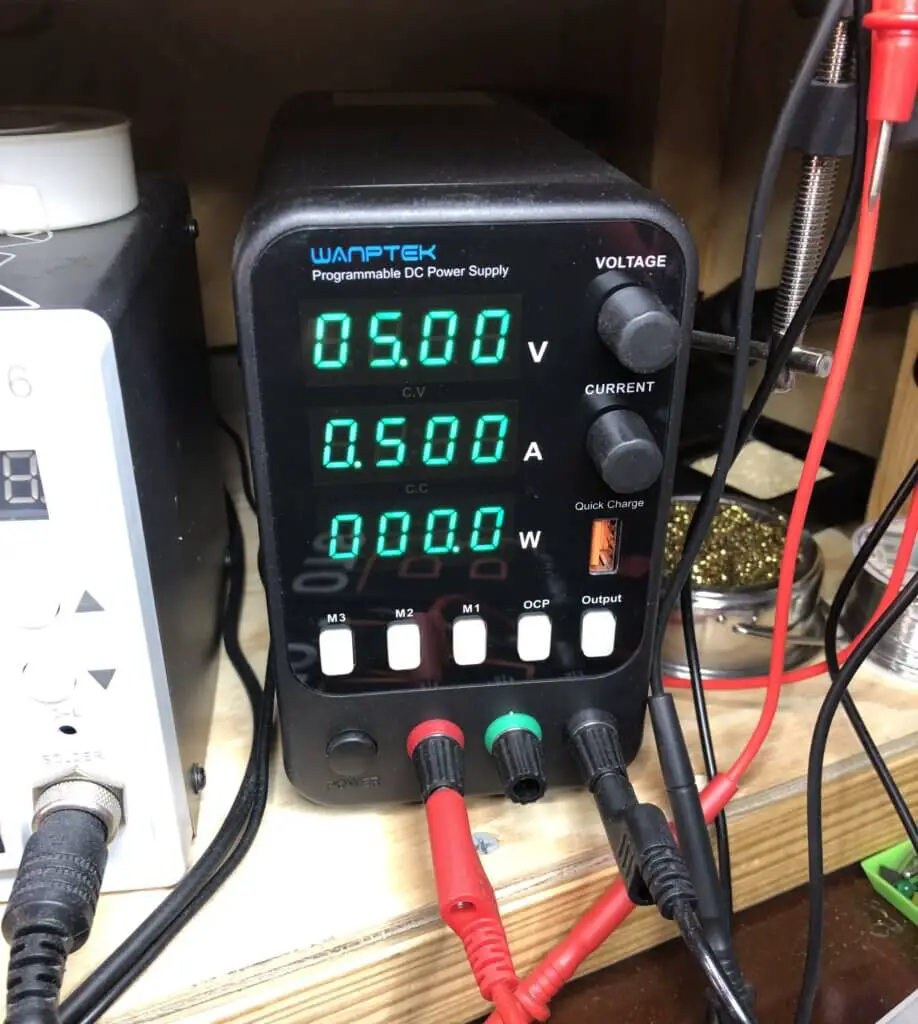
I purchased mine about a year or so ago now, and I’ve used it for many projects over that period of time. It’s a relatively cheap power supply (less than $100) and I have had no issues with mine to date. You can find many other cheap power supplies in the market that are even cheaper than mine and probably just as good.
Just make sure that you do your research and read the reviews of what people say about them, and try as best you can to stay away from the crummy ones. A descent power supply is a must have tool for any electronics hobbyist and will be used a lot for your projects.

Power supplies are easier to setup for power for your prototypes than batteries, and can be adjusted for just the right voltage you need than having to create a power supply circuit for each prototype circuit you make for all your projects.
A good benchtop power supply is a preferable source of power when working with PICs and prototyping their circuits. They’re more reliable, more stable, and time efficient when trying to quickly setup prototype and test circuits.
Trying to fiddle with unreliable power sources can often lead to damaging your PIC microcontrollers, which leads to money and time being wasted – don’t ask me how I know. Just know that I am very familiar with the smell of burning silicon and burning holes in my wallet.
The Flowchart
To help us better understand what it is that we are trying to do, and what we want to accomplish for this project, let’s use the help of a flowchart. Below is a flowchart diagram for this project:
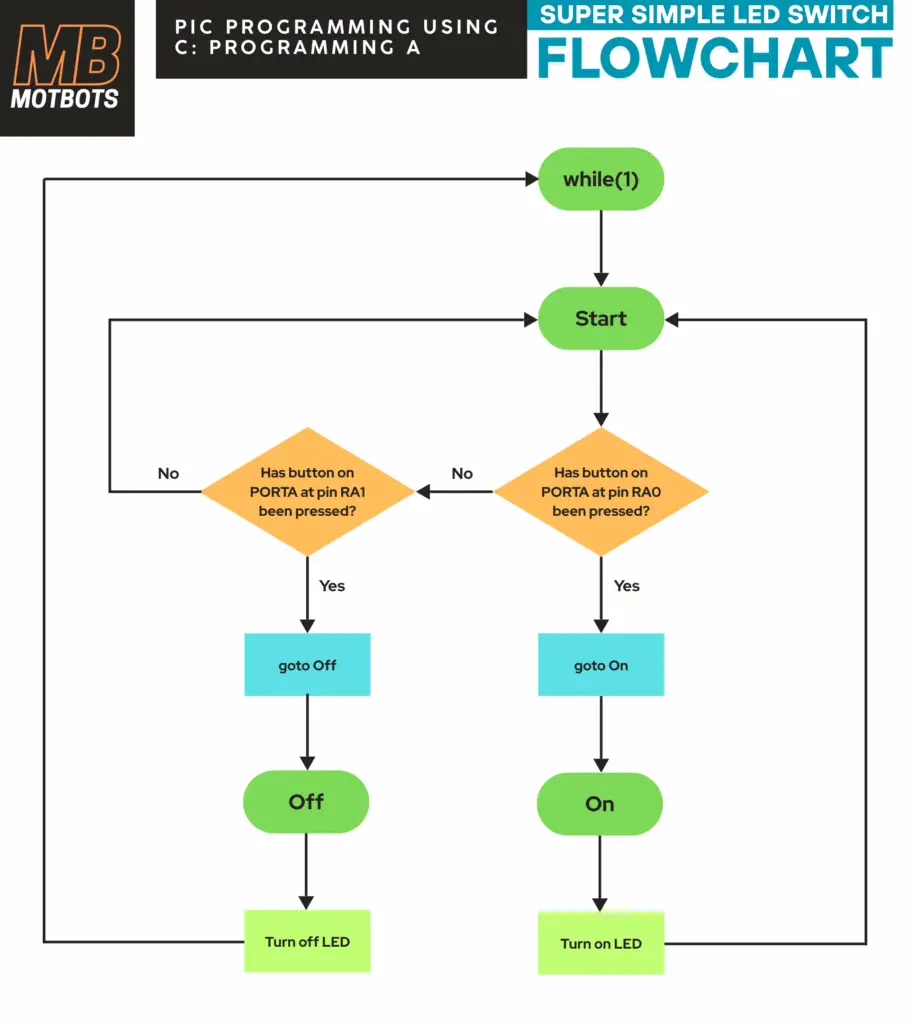
As you can see, a flowchart is a diagram that helps us to understand the flow of the code that we want to write. Being able to visualize how the code should work makes it much easier to think about how we should program the microcontroller.
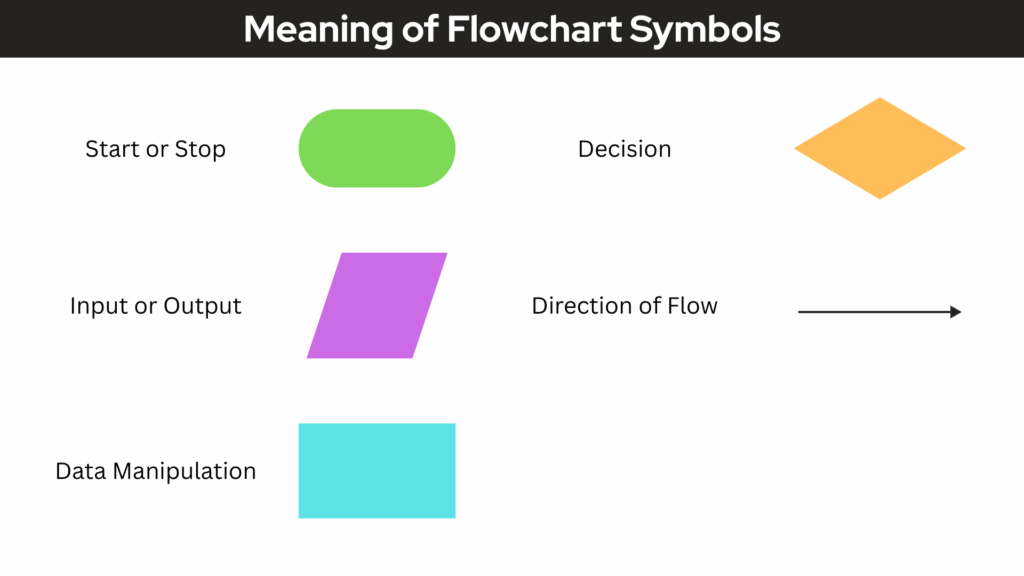
It’s highly recommended to create a flowchart for when you are planning a coding project, especially one that will contain several actions in it and a microcontroller. Below is an explanation of what the symbols of a flowchart mean.
The PIC18F4525 Datasheet
It’s highly recommended that you download and observe the provided datasheet below for the PIC18F4525. We will be using the datasheet to thoroughly go over each pin we will use for this project. The datasheet is where we will find the information that we need to program the PIC.
Microchip PIC18F4525 Datasheet
Download the PIC18F4525 Datasheet
Schematic for the Prototype Circuit
Now, let’s move on to the schematic of this project. A schematic shows a visual representation of the components we’ll use for our project and how each are to be connected in the circuit we’ll build.
The schematic, shown below, will help us understand how each component in this project will be connected to each other, to the power source, and to ground.

The schematic shown above shows a representation of the PIC18F4525 microcontroller that we’re using for our super simple LED switch project. If you look closely, you can see all the little numbered and labeled lines coming from the rectangular shape – that’s the microntroller! The little lines are a representation of the microcontroller’s pins.
Pin 1 (MCLR)
Starting at pin 1 (MCLR), this pin will be used for our RESET switch (SW3). If we were to look at page 43, of the datasheet for the PIC18F4525 microcontroller, we’d see that this page explains as to what the Master Clear (MCLR) pin is for. The datasheet states that “the MCLR pin provides a method for triggering an external Reset of the device.”
A Reset is generated by holding the pin low. We can see in the schematic above that the MCLR pin is being held high through the 1000 ohm (1kΩ) pull-up resistor (R4). When the RESET switch (SW3) is pressed, a connection is all-of-a-sudden made from the MCLR pin to ground, through the switch itself. This sends a low signal to the MCLR pin of the microcontroller, therefore resetting the code back to the beginning.
A 100 nano-farad (0.1µF) capacitor (C2) has been placed across the RESET switch (SW3) for the use of keeping the voltage across the pins of the switch stable. If you’re familiar with resistor-capacitor (RC) circuits and their time-constants, you know that after zero time the capacitor will not drop any voltage. This is because once a capacitor is fully charged, it tends to block any changes in voltage.
It takes 5 time-constants to fully charge a capacitor. It also takes 5 time-constants to fully discharge a capacitor. So, when the switch (SW3) has not been pressed, the MCLR pin is held high, via the 1kΩ resistor (R4). Once the push-button RESET switch (SW3) is pressed, it takes 5 time-constants for the capacitor to fully charge:
\begin{equation}
5\tau = 5RC
\end{equation}
\begin{equation}
5\tau = 5(1k\Omega)(0.1\mu{F})
\end{equation}
\begin{equation}
5\tau = 5(1000)(0.1×10^{-6})
\end{equation}
\begin{equation}
5\tau = 0.0005 = 0.5\;\text{milliseconds}
\end{equation}
Where τ is a lower-case Greek letter used to represent the time-constant. The τ (tau) is pronounced with the “ow” sound – like the sound you make when you hurt yourself, but with a t. You can listen to how tau is pronounced here.

One time-constant is written as:
\begin{equation}
\tau = RC
\end{equation}
Where R is the equivalent resistance between the capacitor and voltage source (in this case, we just have one resistor, R4) and C is the value of the capacitor.
After 5 time-constants, we can see that for our circuit the time to fully charge the 0.1µF capacitor (C2) takes about 0.5 milliseconds – almost immediately making the voltage stable across the switch (SW3) to make the MCLR pin go low as needed to Reset the code.
On the flip-side, it takes about 0.5 milliseconds to fully discharge the capacitor (C2) – almost immediately making the voltage across the capacitor zero, therefore fully setting the MCLR pin high again when the switch (SW3) is open.
Pins 2 and 3 (RA0 and RA1)
If we look at page 2, of the datasheet for the 40-Pin PDIP PIC18F4525 microcontroller, we can see the Pin Diagram for the PIC. Pins 2 and 3 are contained in PORTA of the microcontroller. Pin 2 is referred to as RA0, and pin 3 is referred to as RA1.
- RA0 means bit 0 on PORTA
- RA1 means bit 1 on PORTA
PORTA is one of the I/O ports of the PIC18F4525, that contains individual I/O pins for that port. Since the PIC18F4525 is an 8-bit PIC, it has up to 8 bits on each PORT ranging from bit 0 to bit 7.
Referring to pages 91 through 92 of the datasheet, we can learn that PORTA is an 8-bit port, and that pins RA0 and RA1 are two of eight total input/output (I/O) pins on PORTA.
Let’s observe how our schematic shows how we are to connect the “ON” switch (SW1) to pin 2 (RA0) and the “OFF” switch (SW2) to pin 3 (RA1).
We see that pin 2 (RA0) is connected to a terminal of the momentary push-button switch, the “ON” switch (SW1). At that same terminal, a 1kΩ pull-down resistor (R1) is connected to ground. We also see that the opposite terminal of SW1 from its pull-down resistor-side terminal is connected to the positive power supply of +5 volts.
Similarly, we see that pin 3 (RA1) is connected to a terminal of the momentary push-button switch, the “OFF” switch (SW2). At that same terminal, a 1kΩ pull-down resistor (R2) is connected to ground. We also see that the opposite terminal of SW2 from its pull-down resistor-side terminal is connected to the positive power supply of +5 volts.
- Switch 1 (SW1) will act as our ON switch to turn an LED on.
- Switch 2 (SW2) will act as our OFF switch to turn that same LED off.
- One terminal of SW1 is connected to pin 2 (pin RA0) and to R1, to ground.
- The opposite terminal of SW1 is connected to the +5V power supply.
- One terminal of SW2 is connected to pin 3 (pin RA1) and to R2, to ground.
- The opposite terminal of SW2 is connected to the +5V power supply.
Pin 33 (RB0)
Looking at the provided schematic for this project above, we see that we have an LED (D1) and a current limiting resistor (R3) tied to pin 33 (RB0) of the PIC. For this simple LED switch project I’m using a red LED for D1, but you can use whatever color LED you like.

Notice that pin 33 is considered to be RB0 for the PIC18F4525. This means that RB0 is bit 0 on PORTB. PORTB is one of the I/O ports of the PIC18F4525, that contains individual I/O pins for that port. Since the PIC18F4525 is an 8-bit PIC, it has up to 8 bits on each PORT ranging from bit 0 to bit 7.
- RB0 means bit 0 on PORTB
Referring to pages 94 through 95 of the datasheet, we can learn that PORTB is an 8-bit port, and that pin RB0 is one of eight total input/output (I/O) pins on PORTB.
Power Supply Pins
Looking at the schematic provided above for this project, it’s difficult to read the pin numbers for the PIC’s power and ground. So, let’s take a look at the Pin Diagram on page 4 of the datasheet so we can see the VDD and VSS pins.
Even though our schematic doesn’t quite show this, there are two VDD pins (pins 11 and 32) and two VSS pins (pins 12 and 31) on the PIC18F4525 microcontroller. We will connect both VDD pins to our positive power supply (+5V) and connect both VSS pins to our negative supply or ground (0V).
- VDD is used as the positive supply voltage
- VSS is used as the negative supply voltage
Looking at our schematic above, we see that we will connect both VDD pins together to the +5V supply. From this connection is a 0.1µF ceramic capacitor in parallel to it and ground. This capacitor acts to help stabilize the supply voltage feeding into the microcontroller, which is crucial for its operation.
Both VSS pins of the PIC18F4525 microcontroller will be tied to ground (GND), as can be seen in the schematic above for this project.
- Pins 11 and 32 of the PIC18F4525 microcontroller are its VDD pins.
- Pins 12 and 31 of the PIC18F4525 microcontroller are its VSS pins.
- Both VSS pins of the PIC will be tied to ground (GND).
- Both VDD pins of the PIC will be tied to the +5V power supply. A 0.1µF ceramic capacitor will be tied across this connection and ground to help stabilize this voltage for the PIC.
Now that we have an understanding of the pins that we’re using on the PIC18F4525 we’re using for this project, let’s next get into the hands-on stuff, and finally begin the process of assembling the prototype circuit!
Assembling the Prototype Circuit
A Helpful Tip (Marking the PIC)
For this project, we’re using a dual-inline package (PDIP) for the PIC18F4525. The first “P” in PDIP stands for plastic. This means that the 40 pins that our PIC has is divided in two (dual) and are lined (in-line) on both the long sides of the PIC’s body (package).
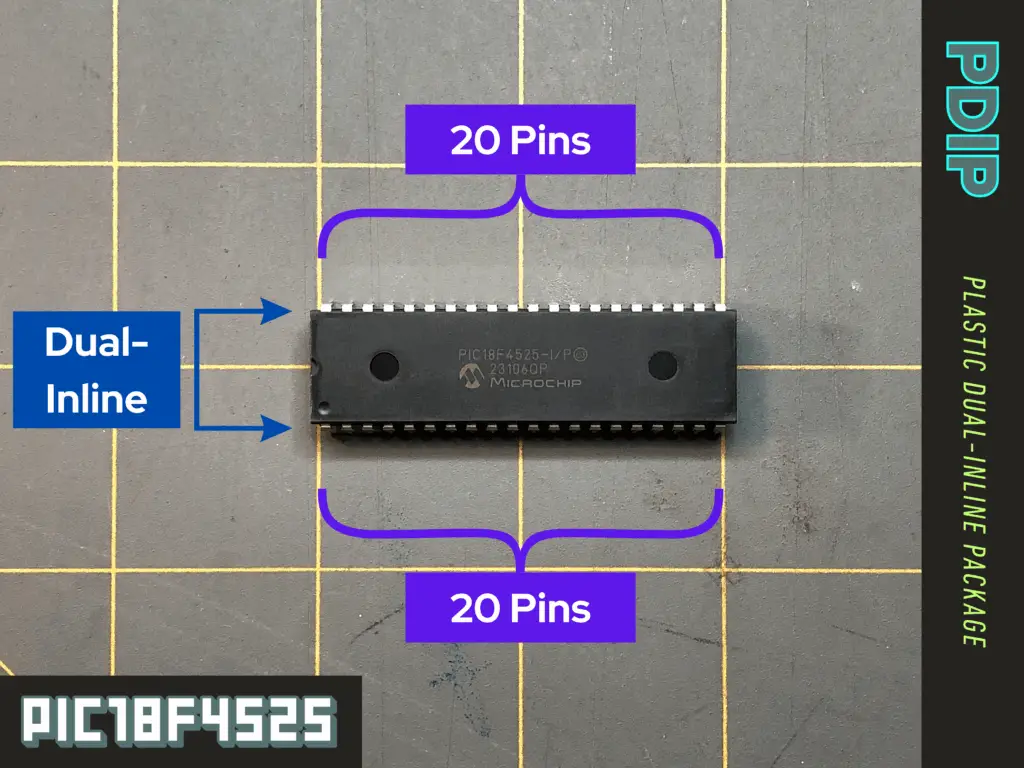
40 pins is a lot, and it can become quite tedious to count them every time we are making connections to them. Also, we’ll need to remove and replace the PIC onto the breadboard when we need to write our code to it from the universal programmer seat adapter we’re using for the PICkit 3 programmer.
So, to make things a bit easier, before we get to prototyping our circuit on a breadboard, I find it extremely helpful to make some marks directly onto the PIC’s body before I start making connections to its pins.
First, place your PIC down on a flat surface or into your breadboard with the pins facing down. Notice the small dimple in one of the PIC’s corners. Orient the PIC so that the small dimple it has for reference is in the top-left corner when facing you. This reference dimple is there to identify pin 1 of the PIC.
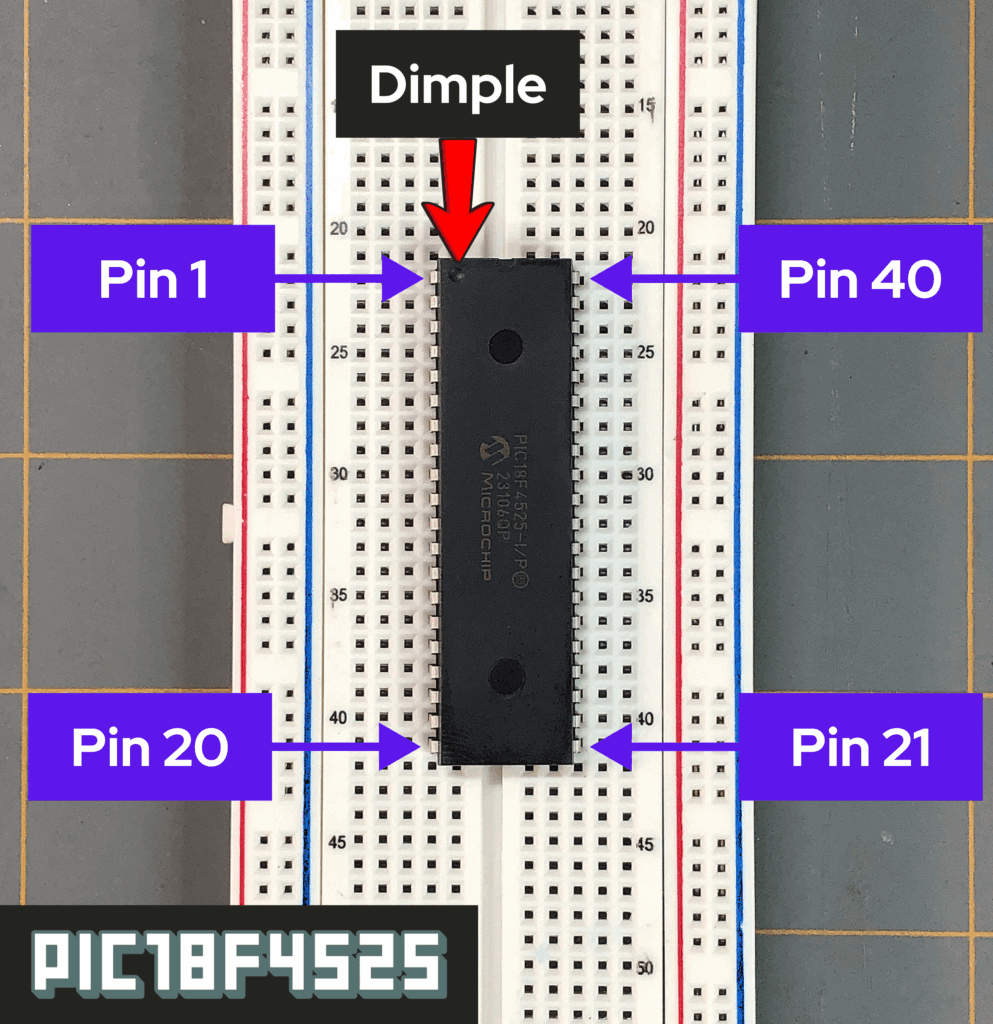
Pin 1 starts from the reference dimple in the top-left corner orientation, and the pin number sequence continues from there, the next pin being pin 2, then pin 3, and so on – down to pin 20, being the last pin on the left-hand side of the PIC.
The pin order continues on the right-hand side of the PIC, directly across from pin 20, where pin 21 begins on the bottom right-hand side of the PIC. From there, the pin number sequence continues, going on to pin 22, then to pin 23, and so on – working your way up the right-hand side of the PIC.
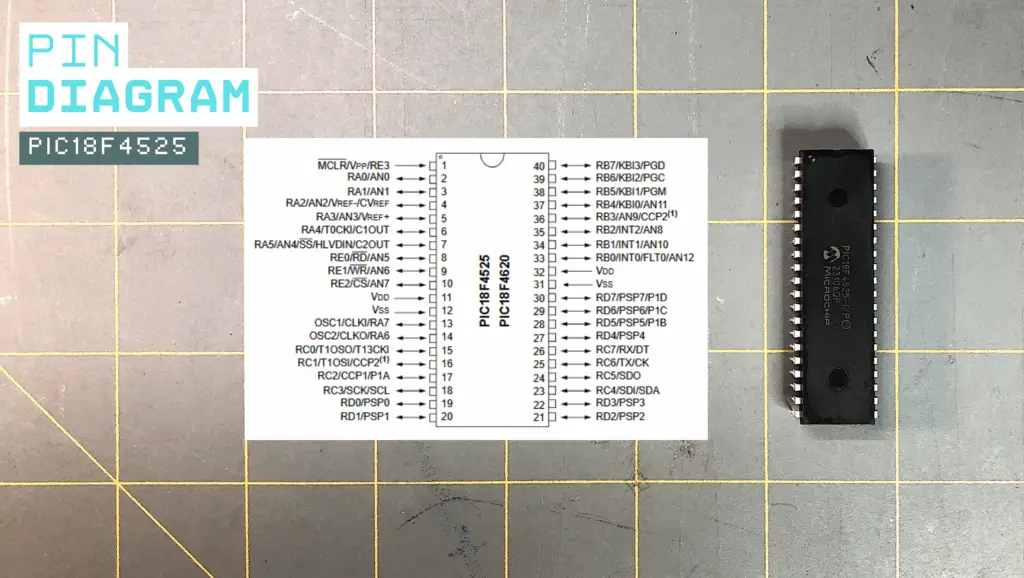
Now, grab yourself an ultra-fine tip permanent marker and take a look at the 40-Pin PDIP Pin Diagram for the PIC18F4525, found on page 2 of the datasheet. We see on the datasheet that pins 11 and 32 are both the VDD pins. These pins are both for the positive supply voltage for the PIC.
- Having the PIC with the top of its body facing up and the small dimple it has for reference for pin 1 in the top-left corner facing you, count to pin 11 down the left-hand side of the PIC. Make a “+” mark next to this pin directly on the body of the PIC.
- Now count up the right-hand side of the PIC to pin 32. Make a “+” mark next to this pin directly on the body of the PIC.
Looking at the Pin Diagram on the datasheet again, we see that pins 12 and 31 are both the VSS pins. These pins are both for the negative supply voltage for the PIC.
- Having the PIC with the top of its body facing up and the small dimple it has for reference for pin 1 in the top-left corner facing you, count to pin 12 down the left-hand side of the PIC. Make a “-” mark next to this pin directly on the body of the PIC.
- Now count up the right-hand side of the PIC to pin 31. Make a “-” mark next to this pin directly on the body of the PIC.
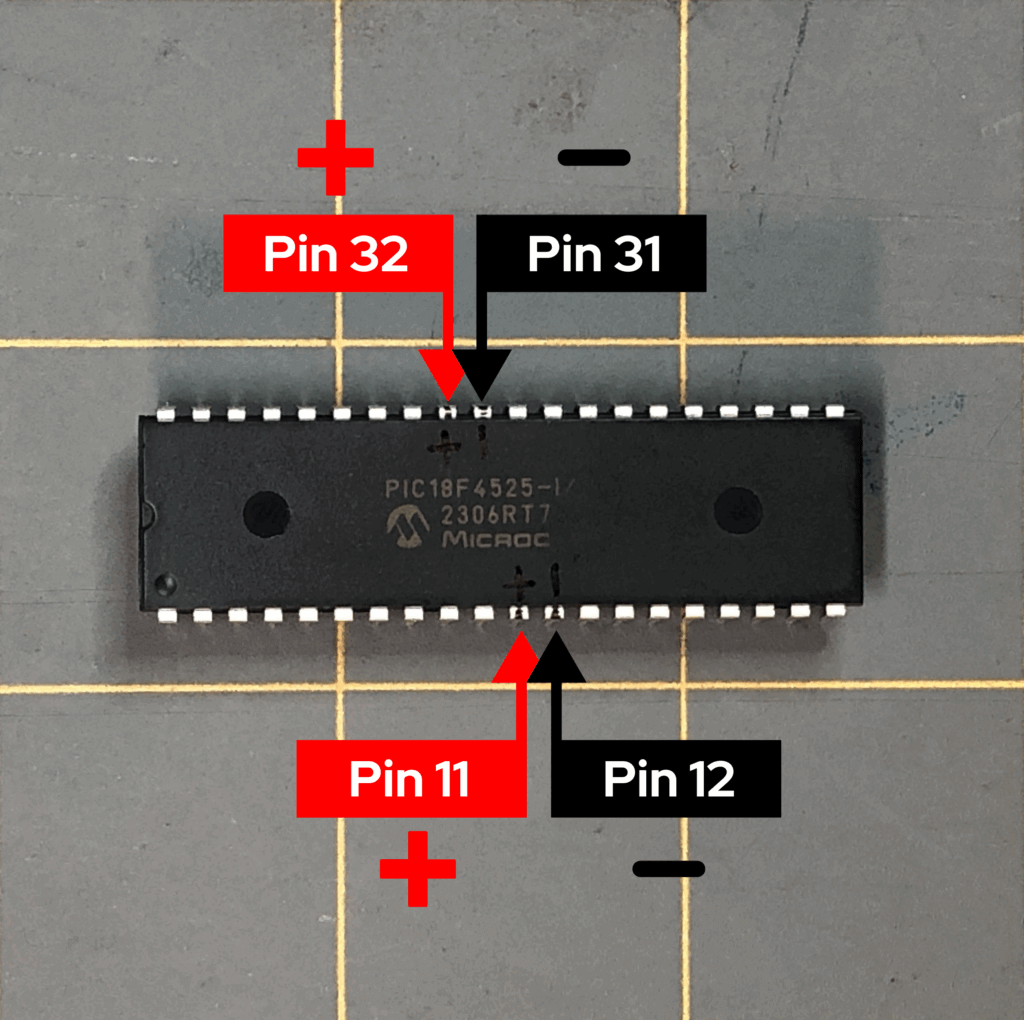
Having made these marks on the PIC’s body for the supply voltage will help in quickly placing your PIC correctly back onto the breadboard after removing it and lining up the connections you made on the breadboard. It’ll also help you quickly reference other pin numbers on the PIC from the datasheet, so that you don’t have to count so many pins all the time.
Placing the PIC Onto the Breadboard

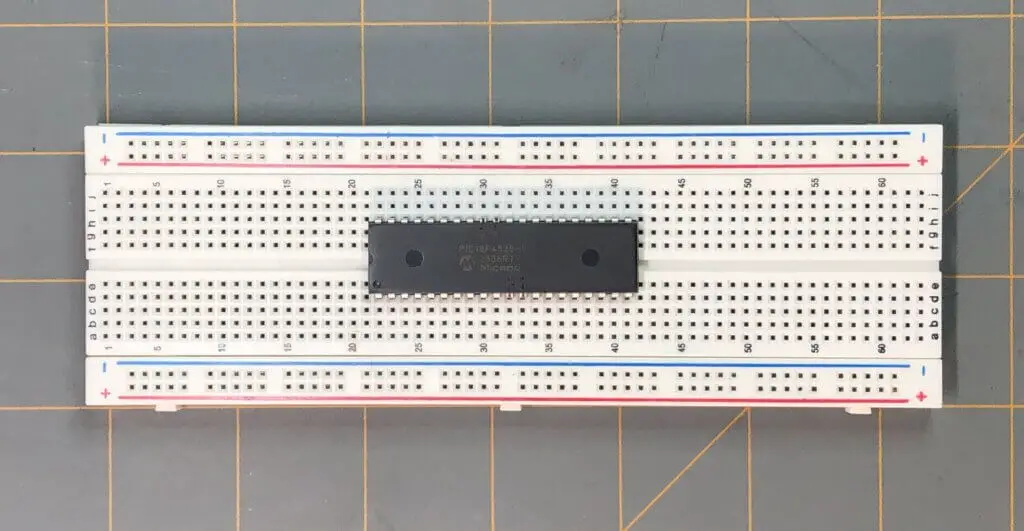
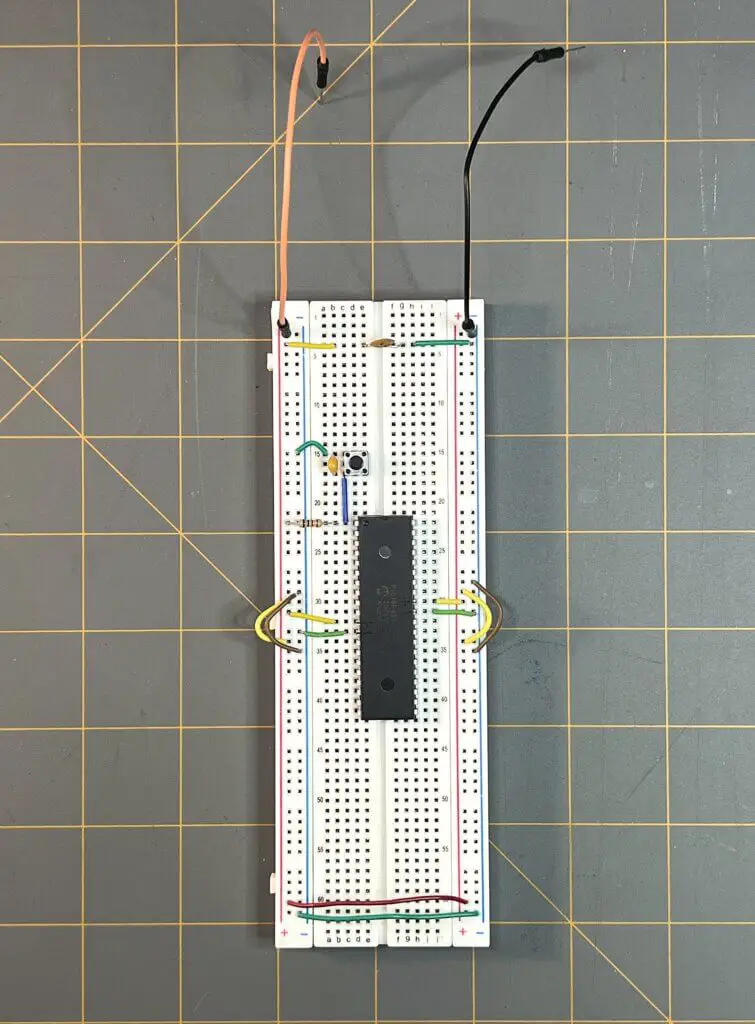
Taking an 830-point solderless breadboard, I’ve aligned the PIC to be about center on the breadboard. I have placed pins 1 through 20 to be placed into points d22 to d41 of the breadboard, respectively. Pins 40 through 21 of the PIC have been placed into points h22 to h41 of the breadboard, respectively.
Making the Power Supply Connections
To make the proper connections for power to the PIC18F4525 and to all other components, I first started with where the 5V power supply will come into the breadboard. Let’s go through the connections, step-by-step:
- To start, I took a long orange jumper wire and placed one end of it at the top point on the left-hand side positive power supply rail.
- Then, I took a long black jumper wire and placed one end of it at the top point on the right-hand side negative power supply rail.
- Next, I placed a 0.1µF ceramic capacitor in to points e4 and g4 of the breadboard.
- To continue the connections to the capacitor, I connected a small yellow jumper wire at point b4 — inline with the leg of the capacitor, then placed the other leg of the jumper wire in a point at the adjacent positive power rail of the breadboard.
- I then connected a small green jumper wire at point h4 — inline with the other leg of the capacitor, then placed the other leg of the jumper wire in a point at the adjacent negative power rail of the breadboard.
- To continue the positive power supply route through to both sides of the breadboard, I placed small yellow jumper wires across the points from the upper positive power rail to the lower positive power rail for both the left and right sides of the positive power rails of the breadboard.
- To continue the negative power supply route through to both sides of the breadboard, I placed small brown jumper wires across the points from the upper negative power rail to the lower negative power rail for both the left and right sides of the negative power rails of the breadboard.
- Finally, to actually connect the right and left sides of the positive power rails, I connected a long red jumper wire from a lower point on the right-hand side positive power rail to a lower point on the left-hand side positive power rail.
- To actually connect the right and left sides of the negative power rails, I connected a long green jumper wire from a lower point on the right-hand side negative power rail to a lower point on the left-hand side negative power rail.
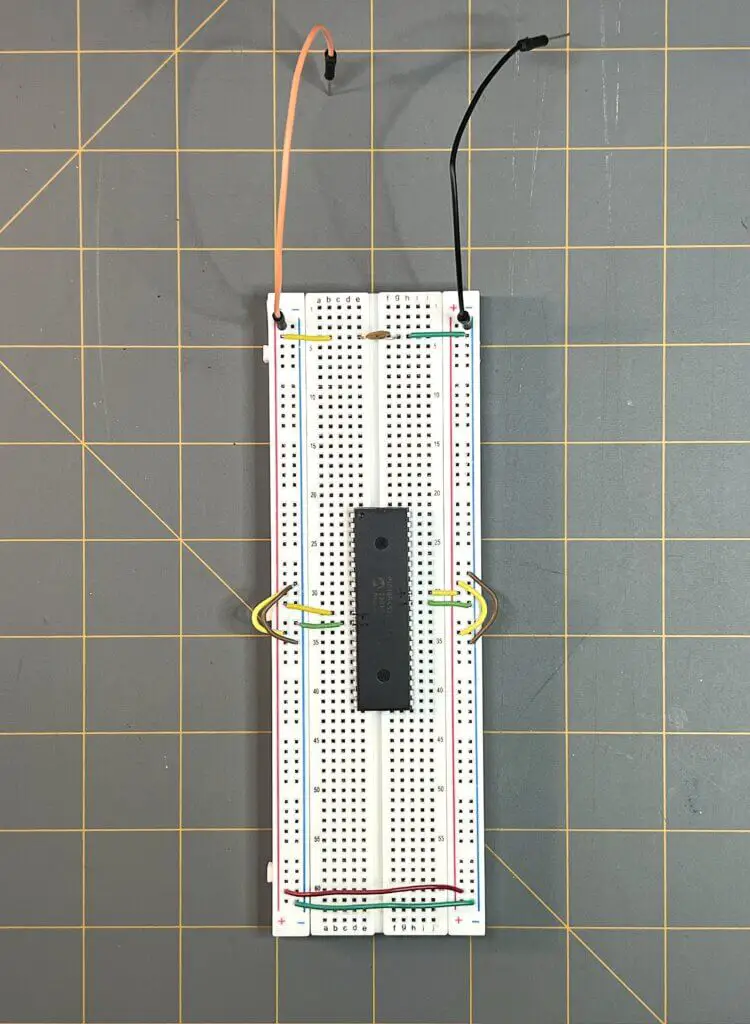
Now, that we have the power supply set up to the breadboard and to the PIC, let’s move on to set up the MCLR connection, which will be for our Reset button for the PIC.
MCLR Connection to Pin 1
To make the MCLR connection for the Reset button for the PIC18F4525, I took a 1kΩ resistor and placed one of its leads inline with pin 1 of the PIC in point b22 of the breadboard. I placed the opposite lead of the resistor into one of the neighboring positive (+) power supply points of the breadboard.
Next, I took a blue jumper wire to make the branched connection from pin 1 of the PIC to the where our momentary push-button switch will be on the breadboard that will act as our Reset switch.
- One lead of the blue jumper wire is placed into point c22 of the breadboard – inline with pin 1 of the PIC and the lead of the 1kΩ resistor we just placed in that location.
- The opposite lead of the blue jumper wire was placed into point c17 of the breadboard.
Next, I took a two-terminal momentary push-button switch and placed one of its leads into point d17 – inline with the blue jumper wire’s lead – and the opposite lead of the switch into point d15 of the breadboard.
Now that the switch is in place, I took a 0.1µF capacitor and placed its terminals inline with the terminals of the two-terminal momentary push-button switch we just installed on the breadboard, at points b17 and b15.
To complete the connection for the Reset button, I took a green jumper wire and placed one of its terminal in point a15, inline with the capacitor’s and the switch’s terminals on the same row.
Switch Connections to Pins 2 and 3
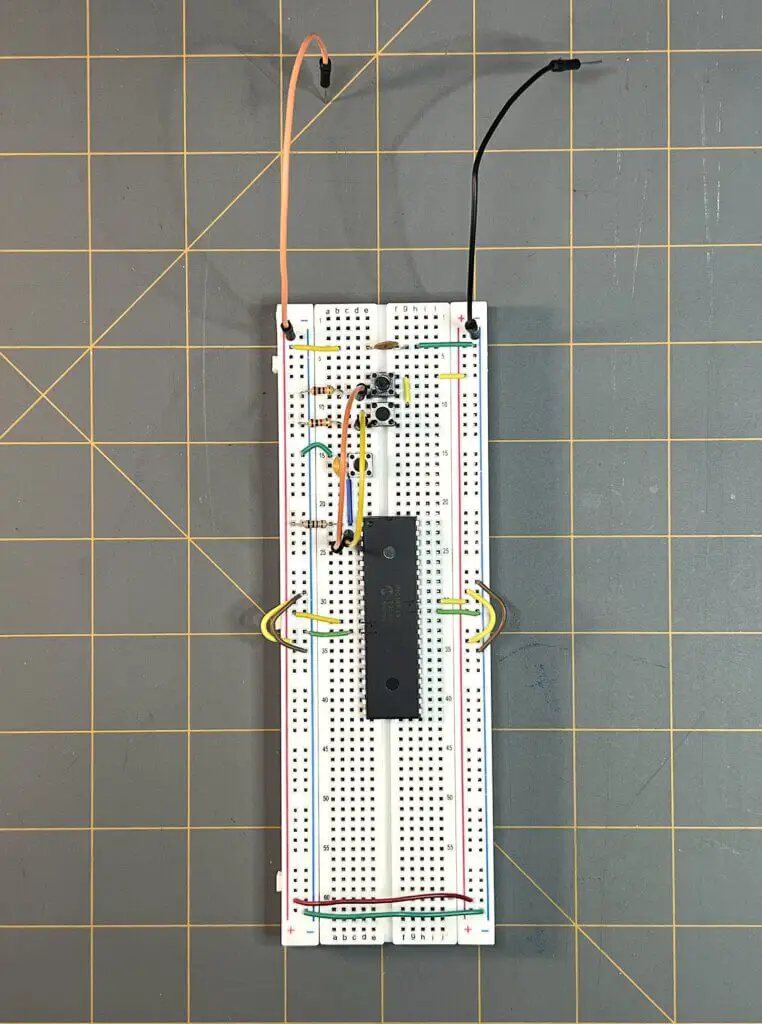
Now we’re ready to make the connections for what will be our ON an OFF switches. To start with, let’s begin with switch 1 (SW1) on our schematic from above and place it on our breadboard, then we’ll do switch 2 (SW2). SW1 will end up being the ON switch and SW2 will be the OFF switch.
- I took one of the four-terminal momentary tactile push-button switches and placed its terminals across the groove of the breadboard, where they will be isolated from each other. I placed one terminal in point e12 of the breadboard, another of the button’s terminals into point e10 of the breadboard. For the opposite terminals of the button, I placed those into points f12 and f10. This will be SW1 from the schematic shown above.
- Next, I took the second four-terminal momentary tactile push-button switch and placed one side of its terminals into the points e9 and e7, and the opposite terminals into points f9 and f7 of the breadboard. This will be SW2 from the schematic shown above.
Now, moving on to make the connections to these two switches, I started with the +5V power supply to both of them. I took a small yellow jumper wire and made a connection between the two switches with it by placing the jumper wire into points g10 and g7. From row 7 of the breadboard, I placed another small yellow jumper wire into point j7 and into one of the neighboring points for the positive power rail.
Next, we’ll make the connections from the PIC to these two switches, SW1 and SW2.
- For SW1, I took a yellow male-to-male jumper wire and placed one end of it inline with pin 2 of the PIC at point c23 of the breadboard, and placed the other end of the jumper wire into point d12 – inline with the terminal of SW1. Next, I took a 1kΩ resistor and placed one terminal into point b12 of the breadboard – inline with the jumper wire connection we just made with SW1.
- For SW2, I took an orange male-to-male jumper wire and placed one end of it inline with pin 3 of the PIC at point b24 of the breadboard, and placed the other end of the jumper wire into point c9 – inline with the terminal of SW2. Next, I took a 1kΩ resistor and placed one terminal into point b9 of the breadboard – inline with the jumper wire connection we just made with SW2.
Connecting the LED to PIN 33
To complete our prototype circuit, all we need to do now is make the connections for the LED we’ll control with the two switches we just previously added to the breadboard.
- I took an orange jumper wire that could reach from point j31 on the breadboard – inline with pin 33 of the PIC18F4525 – to point j20 of the breadboard.
- Next, I took a red LED and placed its anode (+) lead in point i20 – inline with the lead of the orange jumper wire we just installed into the breadboard, leading back to pin 33 of the PIC – and placed the LED’s cathode (-) lead into point i17 of the breadboard.
- Inline with point i17 and the cathode of the LED on row 17 of the breadboard, I placed a 220Ω current limiting resistor at point j17. The opposite lead of the resistor was placed in a point of the neighboring negative (-) vertical power supply rail of the breadboard.
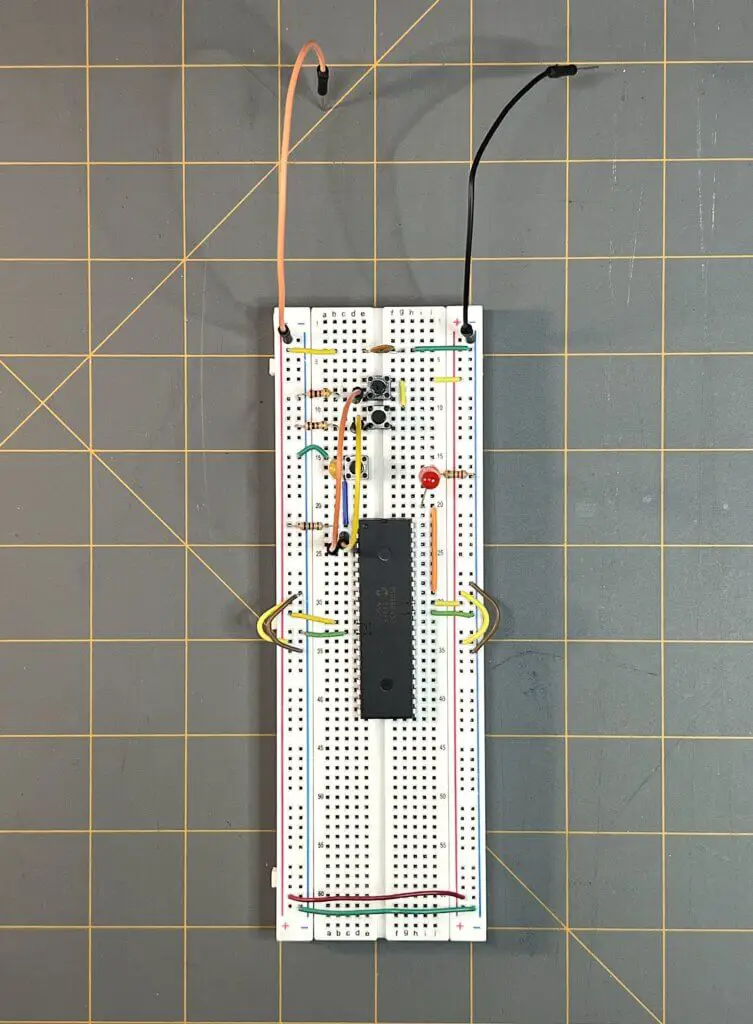
Now that we’ve made the connections to the pins of the PIC on our breadboard prototype circuit, we’re ready to begin the process of creating the code for the PIC. We’ll do that and learn more in Part 3 of this Introduction to PIC Programming Using C: Programming a Super Simple LED Switch project!
Conclusion
We’ve gotten one step closer to concluding this project and have gained so much in knowledge and experience, thus far. We’re so close, I can feel it! We must proceed onto one final and important part though, and that is the code for our PIC microcontroller. This is what awaits in Part 3 of this Super Simple LED Switch project!
I hope that you’ve found the information here useful and hope that this content has been helpful for you. If it has, leave us a comment below. We’d love to hear from you. Help spread the word about Motbots, so that we may help others with similar interests as you in electronics and robotics.
We hope to proceed here, at Motbots, in developing more projects and ideas for you in the near future. Until then, keep at it and stay motivated!
Book Reference
A lot of thanks needs to be given to Hubert Henry Ward and his book titled C Programming for the PIC Microcontroller. The knowledge that he’s shared in his book has not only helped me in my understanding of PIC programming in C, but I’m sure in many others as well.
Mr. Ward’s book starts you in the basics of what you need to know, gradually building your understanding of C programming, PIC microcontrollers, and the MPLABX software. His book will walk you through, step-by-step, during the learning process and on to applying what you’ve learned by performing easy-to-follow projects, often providing pictures within the pages.
In his book, you’ll participate in PIC projects like an LED traffic light, creating a volt meter and use an LCD screen to view voltage outputs. You’ll even delve deeper into some more useful code using the C programming language for the PIC microcontroller.
I highly encourage you to check out Mr. Ward’s book, C Programming for the PIC Microcontroller, so that you too can learn about PIC programming using C.


