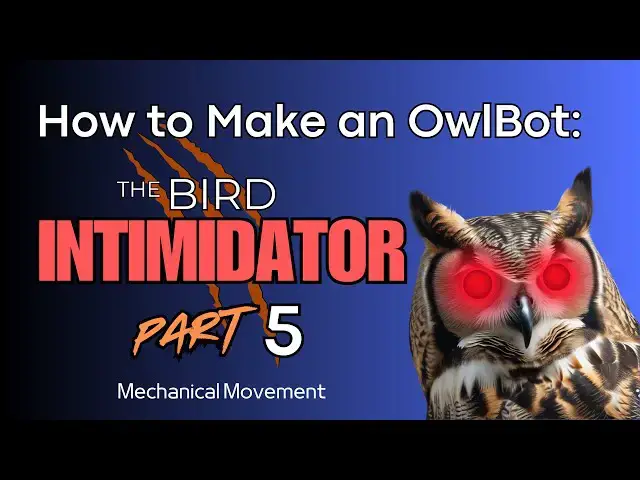
Up next in 10

How to Make an OwlBot: The Bird Intimidator - Part 5: Mechanical Movement
Apr 14, 2025


⬇️⬇️⬇️ INFO FOR PROJECT IN DESCRIPTION ⬇️⬇️⬇️
This is the fifth video (Part 5) of a series of tutorials on how to build an OwlBot.
In this project we’re going to be performing the next step of what will eventually be the OwlBot. The OwlBot will be a device (robot/animatronic) that can be used as a bird intimidation tool to scare away pesky birds in the yard, around the house or barn, at restaurants, or in trees, bushes, and gardens. Hence, the phrase, “The Bird Intimidator”.
During the prototype process of making the OwlBot, I will be using the help of a previous project that was built, The Ultimate DIY 3220-Point Breadboard (TUDIY), to help in the prototyping process. I've provided the links to this project below. If you didn't make your own 3220-point breadboard, then don't worry! You can use just about any ole' generic breadboard you got laying around and still participate in this project. You can obtain everything you need to follow along on this build at the given links below.
Video for Our Website Page: "How to Make an OwlBot: The Bird Intimidator – Part 5: Mechanical Movement"
Page URL: https://motbots.com/owlbot-part-5-mechanical-movement/
Description: This is a supplemental video for a post made on our website.
Website: https://motbots.com
_________ PROJECT INFO _________
PARTS LIST: OwlBot Part 5
https://motbots.com/owlbot-part-5-mechanical-movement/#Parts_List
Images and Schematics in Video found here:
https://motbots.com/owlbot-part-5-mechanical-movement/
Show More Show Less View Video Transcript
0:03
Okay, welcome to part five of the Albot project where we're going to be adding
0:08
mechanical movement to our prototype circuit.
0:20
So, for the goal of this part of the Albot project, we're going to have the
0:26
Arduino Uno control the solenoids to activate on and off continuously when
0:32
motion is detected by the pier sensor we added in part one of the Albot project
0:38
series. And then we want to have a DC motor spin a propeller when motion is
0:44
detected by the pier sensor. So, by the end of this part of the build, we'll
0:49
want our prototype circuit to play the MP3 player file with the owl sounds on
0:55
it to the dual speakers we added to our prototype in part two of the build. We
1:02
want to flash both the LEDs that we're using as the Albot's flashing red eyes
1:10
that we added to our prototype in part three of the build. and we want to activate the two solenoids and have the
1:16
DC motor spin its propeller that we're adding to our prototype in this part of
1:22
the build. So, as you can see here, we have our prototype circuitry set up.
1:28
This is that pier sensor that we added in part one of the build series. You can
1:34
see the Arduino back here, the two speakers and MP3 player back here that
1:40
we added in part two of the series, and the two, you can kind of see the two
1:46
LEDs that we added in part three. And for this part, here's the two solenoids
1:53
we'll be adding to the prototype circuit, as well as the DC motor with
1:58
the propeller on the shaft of the DC motor. So, by the end of this uh part of
2:06
this of the build, we want to have the LEDs flash, the AL sound to the AL
2:14
sounds to play, and we want both solenoids to
2:20
uh go off and the DC motor to spin the propeller on its shaft once motion is
2:27
detected by the pier sensor that we added in part one. So, let's go ahead and talk about the solenoids. I'm using
2:35
these uh two sixvolt pushpull linear
2:41
solenoids. The technical specs that I was able to get for them claim that they
2:46
have an electromagnetic pushpull force of 50 g or about 1.76 ounces, which is equival
2:56
equivalent to.11 pounds. Uh we need two of them to
3:02
control the uh both the faux wings of the albot we'll design later on in this
3:08
project. So we're going to use the two solenoids to control the movement of those wings. Uh we'll design later. I
3:17
did perform some preliminary uh some rough preliminary tests on how
3:24
much force these particular solenoids uh that I'm using uh were able
3:33
to provide and I was quite uh impressed
3:39
for these little tiny solenoids on what they were able to do especially based on
3:45
what I'm using for here. I'll go ahead and provide that
3:51
short video clip uh showing those tests right here.
4:14
[Music]
4:58
So, I was able to get the solenoid to lift without without any assistance, a 9V battery with its snap connector,
5:06
which as you saw was a combined weight of approximately 1.4 ounces according to
5:11
my measurements. Uh, I think with what I have in mind on how I'll make the wings and from what
5:20
material the wings will be made of for this Albot project, uh, I think these
5:27
solenoids will work just fine. Uh, to be able to move those. Um, the wings will
5:33
be fairly uh, lightweight. They're going to be made I'm thinking of making them
5:39
out of maybe a thin wire and somehow connecting that wire uh to these
5:46
solenoids and that wire providing not only structure for the feathers that I'm
5:53
going to use, but also to help in the in the mechanical movement uh that we'll
5:59
need to make those feathered wings move. And I'll show you those feathers that
6:05
I've already ordered here. This is the package of those feathers. I thought these would do
6:12
pretty well and uh kind of look like they could be owl feathers. I'm not sure
6:18
what kind of feathers these are, but uh I'll use these. I got these off of the
6:26
rainforest store and we'll use these feathers later when we build those wings
6:32
later in the project to add to our owl figure that we're
6:40
using. So hopefully that will all work out
6:46
according to plan. I have not built those wings yet, so I have a kind of a
6:52
rough idea. So, just hoping that that's going to work. I think it'll I think these solenoids will work out fine and
6:59
uh moving those things. The only thing I'm really worried about is uh the type of wire that I'm going to
7:05
use and how I'm going to use the wire to create the structure for these feathers
7:11
and getting them to attach to the shafts of the solenoids. So, I don't really
7:19
know how I'm going to do that yet, but we'll get to that part later on in the project. So, as for the DC motor, uh,
7:28
with the propeller, I'm using this to add, uh, more motion for the Albot. It's
7:34
not necessary if you don't want to add this to your prototype, but I wanted to do so in order to create uh, more
7:43
movement for uh, this Albot figure. And the DC motor that I'm using,
7:52
uh, I managed to scrap it off of some other device in the past long ago, and I
7:58
I don't remember exactly where from. I think I got it from an old printer, maybe, but
8:05
uh, it doesn't really matter. You can use any old DC motor that you can find
8:10
one that's small enough to use for the project obviously, but you can also, if you don't have any DC motors lying
8:17
around, you can you can get uh small DC motors from like uh motor hobby kits or
8:25
hobby motor kits. And uh I'll provide a link down in the description below in this video of the
8:33
exact motor kit that I've actually purchased in the past for my daughter.
8:38
Uh so you can check that out if you'd like. And just so you know, any any
8:44
links that I provide uh they they may be affiliate links and
8:49
there may be some form of payment that I receive from those links. So, just to
8:56
let you know. So, as for the parts list and tools used for this project, I'm going
9:03
to go ahead and have all of that kind of scroll down on the bottom of the screen
9:09
or show up at the bottom of the screen and kind of a Bob Ross style showing of
9:15
the material that we're going to be using for this part of the the build.
9:21
So, as I'm talking, all that will be showing at the bottom, so you can take
9:26
notes on that. If you want to see the full parts list and the tools used for this project, I'll leave a link down in
9:33
the description to the website that will take you to the full detailed list of
9:39
those parts and tools used for the project. So, in prototyping the circuit for this
9:46
part of the build, looking back on part three of this build series where we made
9:52
all the connections needed for the uh red LEDs we added to our circuit, we
9:59
then needed to create the code to have those LEDs flash when motion was detected by the pier sensor that we
10:07
added in part one of the build series. And then now we need to add this
10:13
prototype uh to this prototype a pair of solenoids and a DC motor that will
10:21
provide uh the mechanical movement for our Albot. Also, we need to update the
10:27
code and add to it the functionality. We need to get the solenoids to activate
10:33
and the motor to uh spin the propeller when motion is detected by the pier
10:39
sensor. If we remember back on part four, uh we upgraded or we actually
10:45
modified the power supply to our Albot prototype circuit to power the new power
10:51
hungry devices. We're adding in this part of the build, we added another 9V
10:59
battery supply made up of six AA batteries to our prototype. I have it
11:05
set back here, so it's kind of hard to see. We'll use this upgrade to power both the solenoids and the DC motor. Our
11:14
original 9volt battery supply we're still using to power the Arduino and the devices we've connected to it thus far
11:21
in the build. So remember in 2D there's a built-in 9volt battery power supply
11:27
controlled by this switch here. And in talking about
11:32
2D I will be using the ultimate DIY 3220 point breadboard that was made from a
11:39
separate project. That's this uh setup right here. I've called it 2D for short
11:46
so that I don't have to keep repeating the full phrase, the ultimate DIY
11:53
3220point breadboard. I just called it 2D for short. So that's what I've been
11:58
using throughout this build series. So, don't worry. Even though I'll be discussing how to make connections on
12:05
TDI throughout the following prototyping steps, I'll provide images on how to
12:10
hook up the items on a generic breadboard so you can still follow
12:15
along. So, if you recall, we've we've been using an Arduino Uno for our
12:23
prototype circuit to help control some of the devices that we've added to our
12:28
circuitry. And uh in before we get started with
12:34
anything for this part of the build, we first need to go over the Arduino Uno's
12:40
ATmega 328P microcontroller. If you give me a moment, and if I can just reach
12:47
over here, you can sort of see that microcontroller
12:52
here. That's the AT Mega 328P
12:57
microcontroller used by the Arduino Uno. And like I said, we want to kind of go
13:03
over its absolute maximum ratings. I
13:08
think I said that. I'm not sure if I did now that I think about it. But what what we want to do is go over its absolute
13:15
maximum ratings to gain an understanding of what we need to do to hook up our
13:20
components properly to prevent damage to the Arduino Uno and its microcontroller.
13:25
So I'm going to put this table up on the screen. And if we have a look at the
13:31
table on the screen, we see that the values within it are the absolute
13:37
maximum ratings for the IO pins or the input output pins or the of the Arduino
13:43
Uno's ATmega 328P microcontroller. This table came directly from
13:52
uh the Arduino website and I'll provide the link to this down in the description
13:59
below and I think this table was on page 302 if I'm not mistaken. I I'll put
14:06
the page number down in the description below as well, so it'll help you find
14:12
where it's at more easily on that uh data sheet from the Arduino website. So,
14:19
looking at the values, uh we can determine what we're limited to based on
14:24
the microcontrollers ratings. What we want to focus on are the following. the
14:30
DC current per IO pin or per input output pin which states that that is 40
14:39
milliamps and the DC current VCC or the input voltage and G&D pins or
14:48
the ground pin and that states that that is 200
14:54
milliamps. The data sheet is telling us that the DC
15:00
current from each of the IO pins, both analog and digital, of the
15:05
Arduino, is limited to 40 milliamps. The DC current to the VCC and
15:12
ground pins are limited to 200 milliamps. The data sheet also states
15:18
that stresses beyond these listed ratings may cause permanent damage to the device.
15:25
So these are a few things that we we must keep in mind as we're moving
15:30
forward uh in prototyping our circuitry. So
15:37
there's a number of different ways to power the Arduino and that's all explained on the
15:43
website for part five uh this part of the build series. I'll provide uh the
15:50
link to that uh page on our website down in the description of this video below.
15:58
But I'm using an external power source. And that's the uh six AA battery pack
16:05
that I showed you earlier. That's back here. You can kind of see it. And that's
16:11
what we added uh to our prototype circuit back in part four of this build
16:18
series. So let's talk about adding the solenoids. So each of the solenoids that
16:24
I'm using have two wires coming from the coil or from the solenoids coil. So if I
16:32
pick up one of these, you can see that there are two wires coming from it.
16:39
Uh each one has two wires coming from the coil of the solenoid. And to make
16:46
the temporary connections from the solenoids to the breadboard, I chose to use test hook clips that are spring loed
16:54
to make secure connections to the wire ends of the solenoids. And you can see them here. Let me grab another one so we
17:01
can take a close look at that. Here is a test hook clip. Here you can see that on
17:09
this there's two different ends. And on this end, this is the spring loed hook.
17:15
And you can see if I move the light over here just a
17:22
second. There's a hook at the end right here. And we use it's spring loed. And
17:27
we use this end to hook onto the wire or one of the wires of the solenoids.
17:34
And then the other end has this uh
17:40
DuPont male connector in that allows us to pin this in into one of the points or
17:46
holes into the breadboard. So, let me move the light again and then focus
17:53
more on our setup here. And you can see that if I pick up this solenoid here, it
18:00
has a blue and a yellow uh test hook clips on them. And each end
18:07
or each of the wires have the spring-loaded hooks connected to the end
18:12
of the wires. Sorry, I only have one hand free at the moment. I'm going to put this
18:17
back on the board. And the other ends are
18:23
connected in the points or holes on the breadboard. As you can see here, I'm not
18:29
going to remove them because they're all connected to the circuitry here that we'll discuss later. So, we're going to
18:34
focus now on how to control the solenoids with the Arduino. When using
18:41
devices like solenoids on low power devices like an
18:46
Arduino, we can't just hook up the wires of the solenoids directly to the pins of
18:52
the Arduino and expect everything to work. Solenoids require higher voltages
18:58
and currents than a microcontroller alone can provide. The solenoids that I'm using
19:04
for this Albot project are a generic brand that was ordered from the Rainforest store online.
19:11
There was not a lot of info on the solenoids except for the supposed pushpull force that they had and their
19:19
voltage requirements. Uh these, like I said, are sixvolt pushpull solenoids with a pull
19:27
force of approximately 1.4 ounces as was tested previously. In order to find out how
19:35
much resistance these solenoids have across their terminals, I took my multimeter,
19:43
one like this. This is just a generic multimeter. I took my multimeter and I made a reading across
19:51
each of the wire terminals using the uh
19:56
200 ohm setting on the multimeter. Uh I got to look here. So,
20:03
200 ohm setting right here on this multimeter. If you could see that. There
20:08
we go. Now, I'm focused in. So, I use this on this multimeter, the 200 ohm
20:14
setting to take that measurement. And if I grab a test solenoid real quick, I'll
20:20
show you how I did that. Well, I don't seem to have a test solenoid, so I'll have
20:25
to take this one off of here, and I'll just put it back on in a minute.
20:32
So what I did in order to test the resistance across each of these
20:37
solenoids, I took the two ends, the two
20:42
wire terminals coming from the solenoid or coming from the coil of the
20:49
solenoid. I took a black end or I took my black test wire from
20:56
the multimeter to one of the wires. It doesn't matter which one. And then I took the red one to the other wire
21:05
terminal of the solenoid. So I have my solenoid here with my test terminals from the
21:14
uh multimeter here. I kind of want I'll just hold it,
21:19
I guess. And I turned my setting on to 200 ohms. And
21:27
for this particular solenoid, you can see I'm getting a reading of 6.4
21:33
ohms. So that's all I did to get the uh resistance readings across each of these
21:40
two solenoids that I'm using for my prototype circuit. Okay, now I have that
21:48
solenoid hooked back up and we can continue on. So, like I said, in order to find out how much resistance the
21:53
solenoids have across their terminals, I took the multimeter. I made the readings across each of the solenoids terminals
22:00
using the 200 ohm setting on the multimeter. We'll need this information
22:05
later to measure about how much current draw the solenoids have. And as you can see here, the
22:13
following are the readings I obtained from each solenoid.
22:18
You can see on solenoid number one I have a reading of 6.3 ohms. And
22:25
then you can see on solenoid number two I got a reading of 6.2
22:31
ohms. So with this information, how do we control these solenoids with an Arduino?
22:39
We need a way to control the onoff switching of the solenoids. And we want
22:45
to control it with the use of the Arduino we're using for our project. But
22:50
we can't just connect the solenoids to the pins of the Arduino
22:56
because solenoids require higher voltages and currents than a microcontroller alone can provide. So to
23:04
control the solenoids using the Arduino, we need to incorporate some extra components to our circuitry to allow us
23:11
to perform the task we ask the Arduino to do, like switching on and off the two
23:16
solenoids we're using for the Albot project. But what do we need to do to make all this work?
23:24
This looks like a job for some MOSFETs that you can see here on the uh
23:31
prototype circuit on the on TUDTI on our breadboard. And I'll show you a closeup
23:37
of all of this circuitry in a little bit in the video. But for right now, we're just kind of going over of what it is
23:44
that we're trying to do, what we need to do. And then also later, I'll provide
23:49
some images of the some schematics and other things and closeups of the
23:56
components that we're using for this part of the project so that you can get a closer view of it. And also you can go
24:04
over to uh part five of the build of this Albot project uh on our website.
24:11
I'll provide the link to part five of the build that we're currently doing
24:17
right now down in the description of this video below. But like I said, we're
24:22
using MOSFETs to control the solenoids. To give the Arduino the capability
24:28
control to control the solenoids with its IO pins, we will use the help of an
24:35
RFP 30 N06 MOSFET as you can see one
24:40
right here on the screen. Now, next I'm going to show the
24:46
schematic in details. And you can see that it's shown here, and it explains how we're going to
24:54
make our connections to the Arduino and the solenoids using that
25:02
RFP30N06 logic level in channel enhancement mode power MOSFET. The
25:08
schematic shows both solenoids used for this Albbot project. Solenoid one
25:14
labeled as X1 and solenoid 2 labeled as X2. Each solenoid is connected across a
25:22
diode D1 and D2 that acts as a flyback diode. Each of those dodes are placed in
25:29
reverse bias through from the plus 9V battery supply to the drain or D pin of
25:37
the RFP30 N06 MOSFETs. That's Q1 and Q2. The
25:43
flyback diodes are essential for protecting the circuit from voltage spikes generated when the solenoids are
25:50
turned off. For the source or the S pin of the RFP 30 N06 MOSFET, we're just
25:57
going to tie it straight to the negative supply or common ground of the circuit.
26:03
The gates or Gpin of Q1 and Q2 are tied
26:08
to the digital pins of the Arduino Uno, pin seven and pin 8,
26:15
respectively. Digital pins seven and eight of the Arduino will provide the voltage we need to turn the gate of each
26:22
MOSFET on. When motion is detected by the pier sensor we added in part one of the Albot
26:29
project will tell the Arduino in code later to activate the solenoids, pulsing
26:36
them on and off continuously for an amount of time. Resistors R1 and R2 are
26:43
both valued at 10 kiloohms. Both are tied from the gate to ground and both
26:49
act as pull down resistors to discharge the gate of each MOSFET when no voltage
26:55
is applied to the gate. The gate of a MOSFET acts as a capacitor. If we don't
27:01
have a path to ground to discharge the gates, then the MOSFETs Q1 and Q2 may
27:07
not turn off completely. So having a pull down resistor at the gate of the MOSFET ensures that the MOSFETs Q1 and
27:14
Q2 turn off. You can learn more about how MOSFETs work and their applications
27:20
on our website at the link provided in the description of this video
27:26
below. Okay, now that we have this information, we want to calculate
27:32
solenoid current draw. So we're going to be calculating the solenoid current draw. Earlier, I mentioned that I took
27:40
some resistance readings across the terminals of each solenoid that I'm using for this Albbot project. I also
27:46
took a voltage reading of the 9volt battery pack made up of six AA batteries we added to our prototype circuit in
27:53
part four of the build series using the multimeter and obtained a reading of
27:59
9.48 volts. Taking the average of the two resistance
28:05
readings earlier from the solenoids and using Ohm's law to calculate the current, we should be seeing through the
28:12
solenoids and through the drain and source of the MOSFETs, we get a value of 1.5 amps. With a current this large,
28:20
there's no way we could have controlled the solenoids by just hooking them up directly to the Arduino. We must use the
28:27
MOSFETs. So, now we need to discuss about adding the DC motor with the propeller. The reason why I'm including
28:34
a DC motor with a propeller on its shaft to the Albot project is solely to add more movement to the finished product.
28:42
Once we have everything in place on the Albot body, this guy right here, the
28:48
only thing that moves other than the propeller on the motor shaft is the owl's wings via the solenoids.
28:56
So, the finished Albot will end up making sounds by the MP3 player and the
29:03
two speakers that we added in part two of the build series. It'll have its flashing red red LED eyes that we added
29:10
in part three of the build series. And then it'll have the uh moving wings and
29:17
the spinning propeller on the DC motor to help scare off unwanted critters uh
29:23
that we're doing in this part of the build series or that we're adding to our prototype circuit in this part of the
29:29
build series. So, if you don't want to include
29:34
the DC motor with the propeller on your Albot, then by all means, uh you don't
29:40
have to feel like you have to. You can just omit this part of the project if you'd like and just stick with the two
29:47
solenoids that will control the wings that we'll design later on in the build
29:52
series. And uh you could just do that. Otherwise, let's just continue uh with
29:59
how to control a DC motor with an Arduino. So, how are we going to control
30:06
a DC motor with an Arduino? like the solenoids we're using on our
30:11
Albot prototype circuit. To add a motor to the circuit and connect it to the Arduino, we're going to have to
30:18
incorporate some extra components to our circuitry to allow us to perform the task we ask the Arduino to do, like
30:25
switching on and off the DC motor. Again, this looks like another job for a
30:31
MOSFET. So, what we're going to do is use a MOSFET to control the DC
30:37
motor. When using a device like a DC motor on a low power device like an
30:43
Arduino, we can't just hook up the wires to the DC motor directly to the pins of the Arduino and expect it to work. DC
30:50
motors require higher voltages and currents than a microcontroller alone can provide. The DC motor that I'm using
30:58
for the Albot project was hacked off some other device that I can't recall
31:03
off of what from anymore. But the only thing that I know about the DC motor is
31:09
that it's a Mabuchi motor and that it's made from China. I'm guessing that it's
31:14
a 12volt motor. Uh I'm not absolutely sure about that. Um running it off a 9V
31:22
aoublea battery pack supply for seconds at a time is probably totally doable for
31:27
this uh project. So everything should work out just fine. The type of MOSFET
31:34
that I'll be using to control the motor is an IRF840 power MOSFET. As you can see
31:41
right here on the screen, the schematic and details shown here explains how
31:46
we're going to make our connections to the Arduino Uno and DC motor using the
31:52
IRF 840 in channel enhancement mode MOSFET. The schematic shows the DC motor
31:59
M1 used for this Albot project. One terminal of the DC motor is tied to the
32:05
positive 9V aoublea battery pack supply and the other terminal of the DC motor
32:11
is tied to the drain or D terminal of the IRF 840 MOSFET or Q3. The DC motor
32:20
being used for this Albbot project is a brush DC motor. So I've placed a 100
32:25
nanofarad or 0.1 microfarad shunt capacitor or C1 across the terminals of
32:33
the DC motor for a few important reasons of which you can read about from the
32:38
link to our website for part five of the Albot project found in the description of this video below. Also, adding a
32:46
capacitor across the terminals of a brush DC motor is good practice. For the
32:52
source or S terminal of the IRF840 MOSFET, we're going to tie it
32:58
straight to the negative supply or common ground of the circuit. The gate
33:04
of Q3 is tied to pin 9 of the Arduino Uno. Digital pin 9 of the Arduino will
33:11
provide the voltage we need to turn the gate of the MOSFET on. When motion is detected by the pier
33:18
sensor we added in part one of the Albot project, we'll tell the Arduino encode
33:24
later to activate the DC motor, pulsing it on and off continuously and
33:30
simultaneously with the solenoids for an amount of time. Resistor R3 is valued at
33:37
10 kiloohms and is tied from the gate to ground. This resistor acts as a pull
33:44
down resistor to discharge the gate of the MOSFET when no voltage is applied to
33:50
the gate. The gate of a MOSFET acts as a capacitor. If we don't have a path to
33:57
ground to discharge the gate, then the MOSFET Q3 may not turn off completely.
34:04
So having a pull down resistor at the gate of the MOSFET ensures that it turns
34:09
off. You can learn more about how MOSFETs work and their applications at
34:14
the link in the description of this video below. So, if you're not using the ultimate DIY
34:23
3220point breadboard or aka2 for this project and you're using
34:30
some generic breadboard, here I'll provide uh the solenoids and DC motor
34:37
connections schematic so that you could see how to make all those connections to
34:43
any old generic breadboard. I'll also provide the link to this image
34:50
of this schematic shown as well as all the other images and the schematics that
34:58
have been shown in this video down in the link in the description of this video below. So, now that we have
35:05
everything hooked up to our prototype circuit uh on our breadboard, the only
35:12
thing that we need to do now is to program the Arduino to activate the solenoids and to spin the propeller on
35:19
the motor. But before we do that, I'll just take a quick video shot of
35:26
everything up close without any talking. That way you can kind of see everything up a little closer and we can kind of
35:33
take a detailed up close and personal view of everything so that you can kind
35:38
of just kind of gander around uh before we get into talking about uh the
35:44
programming of the Arduino.
36:09
Well, heat
36:38
[Music]
36:50
[Music]
37:38
Okay, now we're on to programming the Arduino to activate the solenoids and
37:43
spin. in the motor. Now that we've properly made our connections for the solenoids and DC motor on the
37:49
breadboard, we can now update our code from part three of the Albot project
37:54
build series to get the Arduino Uno to activate them when motion is detected by
38:00
the pier sensor. So, as you can see here, I'm on the Mottbbots website on
38:08
the how to make an Albbot the bird intimidator part five mechanical
38:13
movement page. Again, I will leave the link uh to this page on our website down
38:23
in the description of this video below. But if we continue to scroll down uh
38:28
into the table of contents here, sort of at the top of this page, and we click on
38:35
the section titled programming the Arduino to activate the solenoids and
38:40
spin the motor, it'll take us straight down to this part
38:45
uh of the blog post that shows the full
38:51
code or the full Arduino code listed here. And if you'd like, you could uh
38:57
directly copy this code by clicking this icon here. And the check mark confirms
39:03
that you've copied it to your clipboard and you can paste it into your to your
39:09
Arduino IDE on your computer and have everything right there at the click of a
39:15
button for you. Or you can scroll down a little bit farther and you can click
39:20
this little uh ad banner here. That's our ad banner for the website and it's
39:26
to our uh GitHub account. And if you'd like, you can click here and it'll take
39:32
you straight to our uh GitHub page here where you can find the Albot part five
39:39
code here. Just click on that and click on Albotpart
39:45
5.ino and you can see this is the code right here. So if you'd like, you can go to the GitHub account and and then uh
39:54
you can copy the raw file here and uh that is all there at your
40:01
disposal or again you can copy it from here. So let's move down a little bit
40:06
further here where the code is actually ex explaining the parts of the code that
40:12
is new or that has been updated since uh the last that we updated the code which
40:18
was back in part three of the Albot build series. You can see here that the
40:24
first thing uh that we discuss is on lines 69 and 70 we've added two new
40:33
variables called leftwing and rightwing. If I go back up into the full code here
40:40
and we look at uh lines 69 and 70, we
40:46
see those two new variables here in the code called leftwing and right wing. So
40:51
going back down to our explanation of this part of the code, uh we can see here that uh these two variables
40:59
arbitrarily represent the left and right wings of the albot or the two solenoids
41:04
used to control the wing movement. So that's all that we've added uh a new to
41:11
uh our code since uh we updated it last in part three or at least that's what's
41:17
new so far and reviewing what's new in the code or updated in the code and it
41:23
just literally means that we're naming these variables the left wing of the
41:29
Albot and the right wing of the Albot. And we've assigned the left wing to
41:34
uh pin seven of the Arduino and the right wing to pin 8 of the
41:42
Arduino. Uh so there's no political innuendos here. They're literally used
41:48
for the owl's wing orientation. So come on, just chill. I mean, can we all just
41:55
chill out and be excellent to each other, dude? So just uh moving on, we see here uh
42:04
that for lines 71 through 73 that we've updated the code uh or added to our
42:12
code, these new lines and uh 71 being an unsigned long for two different
42:20
variables called pre time one and pre time two, meaning
42:26
previous time one and previous time two and we've set that equal to millies and
42:32
we're going to use these variables later uh for uh for some
42:40
multitasking. Uh we have these other two uh long variables named time interval
42:46
one and time interval two. We've set time interval one to be equal to 250 and
42:52
time interval 2 to be 750. And these values will represent
42:58
uh the times in milliseconds that we'll use later on in the code. And uh if we
43:04
look down here, we can see that it explains that pre time one and pre time two variables will be used in the code
43:11
later to mark two previous times that we'll need for multitasking later. And
43:18
it says here that we need multitasking in our code to be able to run multiple devices or components on our prototype
43:24
circuit simultaneously. Such as when the P when the pier sensor detects motion,
43:30
the MP3 player plays AL sounds, the two red LEDs flash, the two solenoids
43:35
activate, and the DC motor activates all simultaneously. So, in order to get all
43:42
that to occur at approximately the same time and
43:47
all activate around the same time, we're going to be using what's called something that's called multitasking in
43:55
Arduino. And uh you can click this link here that'll discuss more about what multitasking is. And if you look up into
44:03
the references here that's on the page, I actually I actually referenced this
44:10
Imm Are y'all on his YouTube page uh or on his YouTube
44:16
uh channel where he had a video titled how to do multi- uh multiple task in
44:25
Arduino and he made an excellent video on that that explained how to do do
44:31
that. And I basically just borrowed what he explained on that video that he
44:37
created on multitasking to be able to perform uh multiple tasks uh on the
44:44
updated prototype circuit that we created here for the Albot project. So
44:50
that was very helpful to be able to get these items to occur and fire off and
44:59
work all at the same time. So, we've initialized the two time intervals, time interval one and time interval two to
45:05
use in our code later. We want to use these for their specific predetermined
45:11
times that we created as time intervals for how long the solenoids will activate on and off. So, these values can be
45:19
adjusted and changed to your preference. And I just happen to choose 250
45:25
milliseconds and 750 milliseconds. Moving on to the next part of the code
45:31
that's new since the last time we've updated it is this new variable called
45:36
propeller on line 76. It is initialized to be uh equal to 9. And the propeller
45:46
variable represents the digital pin 9 on the Arduino that we've hooked one of the
45:52
leads of the DC motor to. And we'll use this variable in code later to control
45:58
when to turn the DC motor on and off. So looking further in the code,
46:05
we've added a few new pin modes for these new variables that we created for
46:10
the left wing, rightwing, and propeller variables. We've initialized them to
46:16
each be an output. So both the left wing and rightwing variables represent the
46:22
solenoids. as we've mentioned before and uh they will be receiving output signals
46:29
from the Arduino to activate or to turn on when needed at pins seven and eight.
46:36
And the propeller variable that represents the DC motors propeller on its shaft will also be receiving output
46:42
signals from the Arduino to turn on when needed at pin 9. Looking further down in
46:50
the code on lines 94 through 96, we've created these new digital rights uh for
46:59
the left wing, rightwing, and propeller variables that we've created in this part of the build series. We've
47:06
initialized them all to be low because when we first run the code, we want we
47:12
don't want the wings or the solenoids to automatically be activated and start
47:18
moving soon as we turn on our circuit. And we also don't want the propeller on the DC motor to start spinning once we
47:26
turn the circuitry on. We only want this, we only want the solenoids and the
47:31
propeller to be on when motion is detected by the pier sensor. So that's
47:37
what this uh is for. So if we look inside the playal function farther down
47:44
into our code, we've updated that play al function that we created in one of
47:50
the previous coding sessions that we had for the Albot series. And here it says
47:57
that if you look inside the play al function, we can see the call to the
48:02
blink eyes function is made. We created this function ourselves back in part
48:08
three of the Albbot project in order to get the two red LEDs we installed on our
48:13
prototype circuit to blink when motion is detected by the pier sensor. So now let's go ahead and look inside those
48:20
blink the blink eyes function next. So the only reason why we're looking at
48:26
this uh play al function is because we see that in that function we created a
48:35
call to the blink eyes. So really I mentioned earlier that we made an update to this function play owl function but
48:43
we didn't we all we're doing right here is looking that previously we were
48:49
making a call to blink eyes function and we want to look at that specifically for this part of the build because we've
48:57
updated something in the blink eyes function. So we just want to remind you here that in the playal function when
49:05
it's called inside that function the blink eyes function is called and when
49:12
we go in code to the blink eyes function there's something new happening on in
49:18
here and this function contains a pair of four loops as we can see
49:25
here this whole section here this we have two for loops loops
49:31
here, one inside another that allows us to create the illusion of the Albbot
49:37
having blinking eyes. We can see that we've modified the second loop and that it now
49:45
has a local variable called current time initialized within the loop. We use this
49:52
to return the number of milliseconds passed since the Arduino board began
49:58
running the program. So you can see this variable
50:05
called current time here. It's initialized to millies. And
50:10
again, we're using this to return the number of milliseconds passed since the Arduino began running the current time.
50:19
Looking farther down into uh the explanation here, uh we see that
50:27
next we use the digital right function to turn both the left and right eye, the
50:34
two LEDs of the Elbot, then wait for an eighth of a second.
50:40
Whoops. So, if we look here, we see that there's a digital
50:45
right to left to the left eye and to the right eye. We're doing a digital right for them to
50:52
be high or turn them on and then there's a delay or we wait for an eighth of a
50:58
second. 125 milliseconds is equivalent equivalent to an eighth of a second.
51:05
Next, we see that two statements follow. The first if statement looks to see if
51:12
the difference of the current time and previous time two or pre time two is
51:18
greater than time interval 2. And if it is, then it's to call the spin propeller
51:24
function, which we'll see later is a function created to tell the Arduino to
51:30
turn the DC motor on to spin the propeller on the shaft of the DC motor.
51:35
So that's this part here, this if statement. If current time minus the
51:41
previous time two is greater than the time interval, then we want to call the spin
51:46
propeller function. These are all new uh variables that we've created here in the
51:52
in part five of the build series that we just discussed about. And we then set
51:57
the previous time equal to the current time to use again later when the blink
52:02
eyes function is called again. So that's this part here. We set the previous time
52:08
equal to the current time. Once we call the spin propeller function and that and
52:15
we exit that function, we set the previous time two to the current time. And then it goes on to say that the
52:22
second if statement looks to see if the difference of the current time and the previous
52:28
time one is greater than the time interval. And if it is, then it's to call the flap wings function, which
52:35
we'll see later is a function created to tell the Arduino to turn the solenoids on that will act as our mechanical
52:43
motion to flap the faux wings or fake wings we'll create for the plastic alig
52:48
we're using in a later part of the Albot project series. And we can see that if
52:55
statement here. And if this statement is true, then we call the flap wings
53:05
function. And then it says just as the previous if statement, we then set the
53:13
previous time one equal to the current time to use again later when the blink
53:18
eyes function is called again. So that's this part here. And then we see lastly
53:24
in the blink eyes function, we call the digital write function for each eye LED right here of the albot to turn off.
53:34
So that's these low signals here. We're wanting to turn both the left eye and
53:39
the right eye off. And then we want to wait or have a delay of an eighth of a
53:45
second or 125 milliseconds before the program leaves the second for loop.
53:53
as we can see here. So moving along now we want to look at the spin propeller
54:00
function and again the spin propeller function is called within this second
54:05
for loop in the blink eyes function and it's called if current time minus
54:11
previous time 2 is greater than time interval 2 then the spin propeller function is
54:18
called and the spin propeller function is called like I just said when the
54:24
blink eye in within the blink eyes function. And when it's called, its only job is to turn the DC motor high or on
54:32
followed by a quarter of a second delay. Then it turns the DC motor off or low
54:38
followed by another quarter second delay. As you can see in here, it turns
54:44
it on high or on. We wait 250 milliseconds or a quarter of a second.
54:50
Then we turn the propeller off or low. And then we wait another 250
54:56
milliseconds or a quarter of a second. And you can change these uh to whatever
55:01
you want. I just happen to choose 250 milliseconds. And then we want to take a
55:07
look at the the uh new flap wings function. And again that is called from
55:12
this second for loop within the blink eyes uh function. and it's called
55:18
if that current time minus the previous time one is greater than the time interval one then it's uh if that's true
55:26
if that statement is true then it calls the flap wings function and the flap wings function uh when it's called its
55:35
only job is to turn each solenoid on or high followed by 150 millisecond delay
55:43
then it turns each solenoid off or low followed by another 150 millisecond
55:49
delay. And you could see that here within the flat wings function. We turn the left and right wing on or high. We
55:57
wait 150 milliseconds. And then we turn the left and right wing off or low. And wait
56:04
another 150 milliseconds. So, that's pretty much all that we've
56:10
added or updated to the code since the last time we updated the code back in
56:15
part three of the Albot project build series. And again you can see uh the
56:22
entire uh code here from the the website or you can go
56:30
to our GitHub page by clicking here. And I'll I'll leave the links to uh our
56:36
website page for the code and to our GitHub page and in the links in the
56:43
description in this video below. So next, once we've got uh our code all
56:49
updated, we need to compile it and upload the code to our to our Arduino,
56:55
which means that we need to connect our our Arduino to our computer, compile it,
57:01
upload it, and then disconnect our Arduino. And then we're just want to
57:06
test and see what we've done. So we end up we ended up adding the solenoids to
57:12
our prototype of the Albot project. uh we add a DC motor to our propel with the
57:17
propeller to our prototype of the Albot project and we created the code, we
57:23
verified the code and we fixed any errors, we compiled and upload the code to Arduino and then we disconnect the
57:31
Arduino from our computer. And then once we've compiled it and uploaded the code
57:36
to the Arduino, uh then we can test and see if everything works. And next I'll
57:44
show you the working circuit that we have thus far,
57:49
this part five of the Albot project series. So let's take a look at our
57:54
prototype circuit working once we've already uh compiled and uploaded this
58:00
updated code here in part five. So let's look at that next.
58:50
That's pretty cool, huh? I mean, we've gotten pretty far uh so far in this
58:55
Albot project build series, and we're that much closer to getting our Albot
59:01
completely finished. I mean, we've only got a few more steps left and uh we're
59:07
we're getting pretty close to the finish line. So, I'm getting pretty excited
59:12
about that and I hope that you are, too. So, what's next for the Albot project
59:19
build series? So far, we've implemented motion sensing, sound, flashing LEDs,
59:27
and now we have mechanical motion with the use of a couple of solenoids and a DC motor. Now, we need to have a way to
59:34
control turning everything on and off, a master switch, if you will, for the
59:40
entire circuit. So, next, we'll need to add a switch for each power supply being
59:45
used for our circuit to be able to control the power to our circuitry. So, this is what we'll be doing in part six
59:53
of the Albot project. I don't know about you, but I'm having a whole lot of fun building this Albot. I mean, it's taking
1:00:00
a pretty good while. It's been several months in this project, but you know,
1:00:06
with the patience and and determination and the grit that we have performing
1:00:11
this project together, I know that we can finish it and it'll end up working. And uh hopefully we can get it working
1:00:18
pretty flawlessly. It's pretty exciting at this point. We've got all the stuff that we've wanted so far to work in our
1:00:26
project. So hopefully the rest of it will go pretty smooth for us. So I want
1:00:31
to thank you for participating in this project. I hope that you've enjoyed the build thus far and uh let us know what
1:00:39
you think. Just uh leave a comment and I'd like to hear from you. I' I'd really
1:00:44
like to hear from you if you're uh been building this project and been following along this whole build series. That'd be
1:00:52
really neat. So again, I want to thank you. I hope that you've enjoyed the
1:00:59
builds thus far and hope that you stick around for more. Remember to keep at it
1:01:04
and stay motivated. And until next time,
1:01:10
let's watch our accomplishments so
1:01:19
far. I'll see you next time. Take care.
#Electronic Components
#Electromechanical Devices
#Electromechanical Devices